TV Cast Pro for Roku
- 4.4
- Rating
- 50.00K
- Installs
- $6.99
- Price

 Analysis by App-foxy
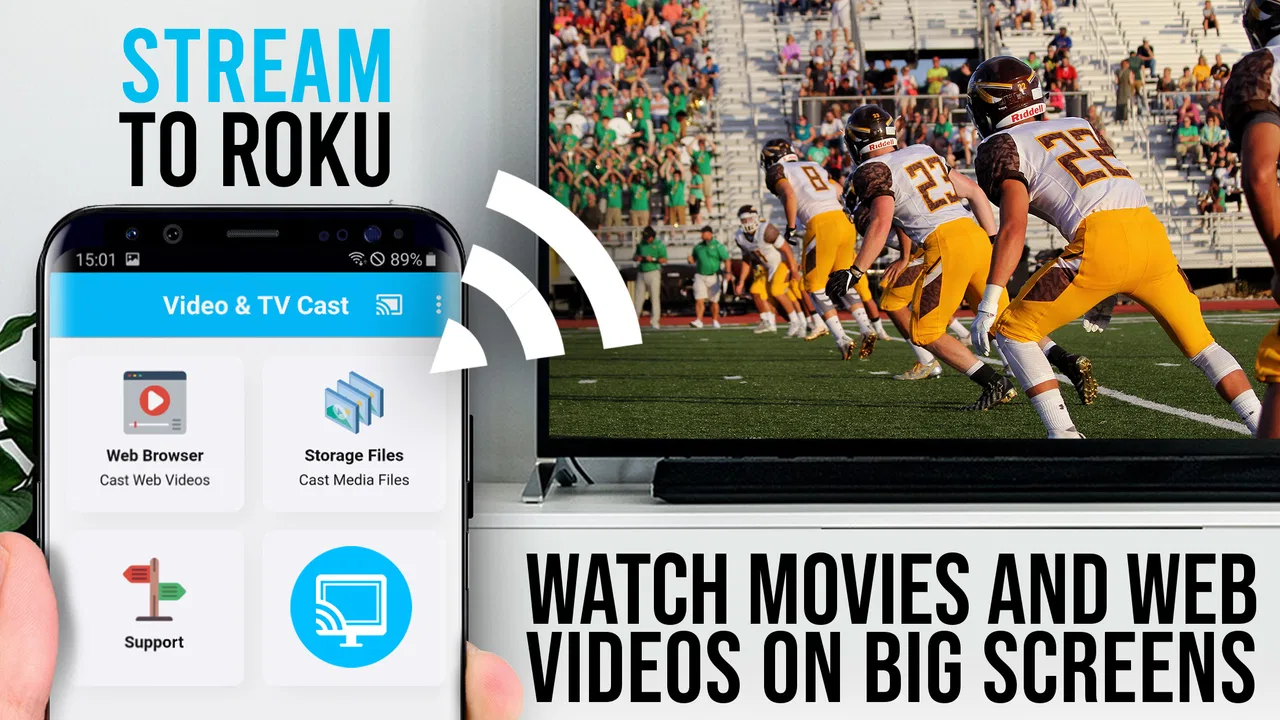
I approached TV Cast Pro for Roku as a practical casting tool rather than as a replacement for every streaming app on a phone. Its purpose is straightforward: browse web videos, online movies, and livestreams, then send compatible playback to a Roku device. That focus makes it interesting for people who want a larger screen without mirroring their entire phone, but it also means the quality of the experience depends heavily on the website being cast and on how comfortably you can navigate a browser-style interface.
The app comes from 2kit consulting and sits in the video players and editors category. It is a paid app at $6.99, aimed at Everyone, and the current version is 2.48. It first appeared on November 7, 2016, supports Android 7.0 or newer, and has passed 50 thousand installs. Its average rating is 4.4 from around 2.6 thousand ratings, with 638 written reviews. Those figures suggest a reasonably established product, but I would still judge it by your particular casting habits, especially if you need large controls, very simple navigation, or dependable access to every kind of online video.
How the interface feels to read and navigate
I find the interface easiest to judge by separating the work into two parts: reading and searching on the phone, then watching on the television. A useful habit is to pause before tapping when a page is crowded, so you can distinguish the video controls from surrounding links and prompts. The next section looks at how that interaction can feel across different physical and viewing situations.
You May Also Like

 Pandora - Music & Podcasts
Pandora’s Music Is Easy to Start, but Harder to Recover
Pandora’s strength is its low-effort path from a seed to a station. Its weak spot is how much confidence it asks you to place in connection, setup, and quiet recovery.

 AccuWeather: Weather Radar
AccuWeather Review: A Quick, Clear Forecast for Everyday Decisions
For everyday plans, the best forecast is the one you can understand quickly. AccuWeather makes rain timing, radar, and local conditions easy to act on, with a few trade-offs.

 Hill Climb Racing
Why Hill Climb Racing Still Turns Crashes Into One More Run
A tiny car, a bumpy hill and one more upgrade: Hill Climb Racing keeps resurfacing because its simple chaos makes every near-miss feel personal.

 AliExpress - Shopping App
AliExpress Makes Global Shopping Feel Personal, but Shoppers Bear the Risk
AliExpress turns a global marketplace into a pocket-sized discovery engine. Its reach is useful, its shopping loop compelling, and its trade-offs easy to miss.

 Lords Mobile: Kingdom Wars
Lords Mobile Is a Kingdom-Building Routine, Not a Quick Match
A case-by-case verdict on the building, battles, device demands, and social commitments that make Lords Mobile rewarding for some players and exhausting for others.

 PDF Scanner app - TapScanner
TapScanner Makes Paperwork Easier to Capture, Check, and Share
TapScanner makes scanning with a phone feel less like a rescue operation and more like a dependable step in getting work done. Its capture tools are useful, though not flawless.
More From Our News Desk
View All News


A browser-first layout with a clear purpose
The most important thing to understand is that this is not simply a remote control with a cast button added on. The browser is central to the workflow. I open a page, locate the video, select the content I want, and then send that playback toward Roku. That arrangement can be more useful than switching between a phone browser and a separate remote application because discovery and playback begin in the same place.
For ordinary web pages, the benefit is obvious. If a video is not offered through a dedicated Roku channel, browsing for it on the phone can be quicker than searching through Roku menus with the television remote. I also find the phone screen easier for typing, scrolling, and opening pages than the television interface. The trade-off is that a busy webpage remains a busy webpage. Advertisements, cookie prompts, pop-ups, embedded players, and small links can make the route to the actual video less direct.
Readability therefore depends on the site as much as on the app. A clean video page is comfortable to scan, while a crowded page may require repeated scrolling and careful tapping. People who use screen magnification or who prefer large text should check how the browser content behaves on their particular phone. The app can put web video in front of you, but it cannot redesign every website into a high-contrast, spacious layout.
Why the remote element matters
Once something is playing on Roku, the remote side of the app becomes more valuable. I do not have to keep reaching for the physical Roku remote for every small adjustment. That is especially convenient when the phone is already in my hand after finding the video. It also reduces the awkward handoff between devices, although users who are already comfortable with the Roku remote may not see enough benefit to justify paying for another control method.
There is a useful distinction here between discovery and control. The phone is usually better for reading a page and entering searches; the television is better for watching. Keeping those roles separate avoids the discomfort of trying to read a full webpage from across the room. However, it also means the phone remains part of the viewing routine. If you want to start a film and then put the phone away completely, a native Roku channel is usually a cleaner option.
Small habits that make navigation easier
I recommend preparing the Roku connection before searching for a long video. That removes one layer of interruption after you have already found the content. I also keep the phone close enough to read page text while leaving the television at a comfortable viewing distance. This sounds minor, but it prevents the common mistake of trying to use the television as if it were a giant browser monitor.
For people who struggle with visual scanning, opening one page at a time is better than keeping many possible videos in a cluttered browsing session. I would also avoid relying on a tiny embedded play icon when the page offers a clearer full-screen or dedicated player control. Web layouts change, so a workflow that works on one site may feel completely different on another. That inconsistency is not a flaw unique to this app, but it is part of the real experience.
Where the usual alternatives are simpler
A native Roku channel wins when the service already has one. Its menus are built for the television, playback is generally designed around the Roku environment, and the phone is optional. Screen mirroring can be easier when the goal is to show an entire app, presentation, or page exactly as it appears on the phone. TV Cast Pro is more selective: it is most appealing when I want web content on Roku without mirroring everything else on my screen.
That difference also affects readability. Mirroring may preserve the original phone layout, which can be useful for a person who has already enlarged text or arranged the display to suit their needs. On the other hand, mirroring keeps notifications and other phone activity visible, and it may be less comfortable for extended video watching. The app’s browser-and-remote approach gives a more focused television result when the website’s player cooperates.
Motor, sensory, and situational considerations
I would treat comfort as something to test during a real viewing session, not assume from the fact that control happens on a phone. Holding the device, making precise selections, and keeping it within reach can help one viewer while tiring another; a short trial with a familiar clip can reveal that difference. The next section considers the remaining practical questions that matter before committing to a paid app.
Reducing repeated reaches and precise remote movements
Using the phone as a remote can help people who find small physical Roku buttons difficult to distinguish or press. A familiar touchscreen may be easier to hold, and the phone’s larger surface can make basic navigation less fiddly than a compact remote. Still, touchscreen controls are not automatically easier for everyone. They require accurate taps, offer limited physical feedback, and can be challenging for users with tremors, reduced dexterity, or difficulty maintaining a steady grip.
My practical advice is to test the most common actions rather than judging the interface from the first screen. Can you select a video without accidentally opening an advertisement? Can you pause or resume playback without searching around? Can you return to browsing after a failed cast? These moments reveal more about motor comfort than the initial setup. If repeated tapping is tiring, a native Roku channel with a familiar remote may demand less interaction.
For users with hearing-related needs, the app’s value depends on the video itself. Casting a web player does not automatically guarantee captions, transcripts, audio descriptions, or consistent subtitle controls. If the source website provides those options in its player, they may be available through that page’s own controls, but I would not treat the casting app as an accessibility layer. Check the source before settling in for a long viewing session.
People sensitive to motion or visual clutter may also prefer a direct video page over a general web page full of moving previews and advertisements. The phone can be held at a comfortable distance while the main content remains on the television, which helps separate browsing from watching. Yet a cluttered source page can still be tiring during search, and the app cannot guarantee a calm presentation when the website itself is aggressive or poorly organized.
Supporting different rooms and viewing positions
The strongest situational advantage appears when the viewer is not seated directly beside the television. I can search from a chair, bed, or kitchen area and use the phone without walking back to the Roku each time. This is useful for someone recovering from an injury, someone who finds repeated movement exhausting, or anyone who wants to control playback from a more comfortable position.
A realistic example is an evening at home when I find a livestream through a web page that is not represented by a Roku channel. I browse on the phone, send the stream to the television, and keep the phone nearby for pausing or returning to the page. That is less disruptive than balancing the phone toward the television for continuous mirroring. If the stream uses a player the app can handle, the arrangement feels natural; if the page blocks casting or constantly changes its controls, the advantage disappears quickly.
It can also help in shared spaces. One person can use the phone to find a clip while others watch on the larger screen, without displaying every phone notification through mirroring. That separation is a genuine reason to choose this approach. However, it assumes the person controlling the session is comfortable with browser navigation and can identify the correct video among surrounding page elements.
Connection and compatibility are part of accessibility
For many users, a failed connection is more than a technical annoyance. It adds steps, uncertainty, and repeated effort. The Roku must be available to receive the cast, the phone must be able to communicate with it, and the web video must be compatible with the casting method. When all three line up, the process is pleasantly direct. When one does not, troubleshooting can be harder for someone who has limited vision, limited hand movement, or little patience for device setup.
I would therefore test the app with a short, familiar video before planning a long viewing session. This gives you a chance to learn where the connection status appears, how to stop playback, and how to recover if the page does not behave as expected. It is also worth deciding in advance whether you will use the phone or the physical Roku remote as a backup. Having that fallback prevents a small failure from ending the whole session.
Three useful trade-offs that are easy to miss
- Separate browsing from viewing: the phone can handle search and page reading while the television handles the actual picture, which is often more comfortable than mirroring a small display for a long time.
- Web flexibility versus predictable controls: the app can reach content outside the normal Roku channel lineup, but every website may present different buttons, layouts, and playback behavior.
- Remote convenience versus phone dependence: controlling playback from the phone can reduce reaching, yet it also means the phone must remain charged, nearby, and understandable throughout the session.
These trade-offs are why I would not describe the app as universally easier. It can remove one barrier while introducing another. Someone who cannot comfortably use a television remote may appreciate phone-based control, while someone who finds small touchscreen targets difficult may prefer the consistency of a Roku remote and a native channel.
Remaining barriers before you pay
Before paying, I would decide whether this browser-to-Roku route solves a recurring problem in your own household or only sounds appealing as a new way to cast. Try to name the web sources you expect to use and consider whether native Roku channels or mirroring already cover them more simply. The next section weighs those trade-offs and who is most likely to keep using the app.
The price needs a specific reason
At $6.99, this is not an impulse purchase for everyone. I see the value when web video is a regular part of your television routine, particularly when the content you want does not have a convenient Roku channel. If you only cast occasionally, the built-in options on your phone, a native service app, or ordinary screen mirroring may be enough.
The paid model can be a positive if it gives you the focused workflow you actually need, but it raises the standard for reliability. Before buying, I would identify two or three websites you use often and consider whether browsing them on a phone, sending their videos to Roku, and controlling playback would save meaningful time. The answer will be more useful than choosing based on the app’s rating alone.
Why web video is never completely predictable
The biggest limitation is the open nature of web content. A page may contain several video elements, a player may use a format that does not transfer cleanly, or playback may depend on a login or a site-specific interaction. A video that looks simple in the browser may not behave like a native television stream. This is the central reason I would avoid promising that every online movie or livestream will work identically.
There is also a difference between casting a video and casting a webpage. If your goal is to display an interactive page, a live chat, a slideshow, or an app interface exactly as it appears on the phone, screen mirroring is often the better match. TV Cast Pro is better suited to sending the playable video itself while leaving browsing on the phone. Choosing the wrong mode can make the app seem unreliable when the real issue is the type of content you are trying to display.
Who should skip it
I would skip this app if nearly all your viewing comes from services with strong native Roku channels. In that situation, the official channel is usually easier to navigate from the sofa and less dependent on web-page design. I would also hesitate if you need guaranteed captions, audio descriptions, or other accessibility features across many sources, because those depend on the individual website and player rather than on the casting tool alone.
It may not suit someone who wants a completely hands-off experience after pressing play. The phone remains useful for browsing and control, and that is part of the design rather than an accidental inconvenience. Users who dislike switching between a browser, a cast action, and a remote-style control will probably prefer a dedicated television app.
Who gets the most from it
I think it is a good fit for a Roku owner who frequently discovers video through the web, wants to avoid full-screen phone mirroring, and is comfortable checking whether a page’s player behaves properly. It is also worth considering for households where phone-based control is more convenient than repeatedly locating the physical remote. People who watch occasional livestreams or specialized web video may find its flexibility more useful than a large collection of native channels they never open.
The developer, 2kit consulting, has kept the product focused on that particular bridge between browser content and Roku playback. The app is not trying to be a general video editor or a full streaming subscription service. That narrow purpose is a strength when it matches your routine, because the interface is built around getting web content onto the television rather than surrounding it with unrelated tools.
My inclusive verdict for Roku households
After looking at the app through readability, motor comfort, sensory needs, and different home situations, I see TV Cast Pro as a useful specialist tool rather than an automatic recommendation for every Roku owner. Its best quality is the separation it creates: I can use the phone for searching and page navigation while the television shows the selected video. That can be more comfortable than mirroring a small screen and more flexible than searching only through official Roku channels.
Its limits are equally important. Web pages vary, casting depends on compatible playback, and the app does not guarantee that captions, descriptions, controls, or layouts will suit every viewer. Touchscreen control may be easier than a small remote for some people and harder for others. The fairest approach is to think about the exact content and physical setup you use at home, then decide whether the browser-based route removes more friction than it creates.
The app’s 4.4 average and more than 50 thousand installs show that it has found a real audience, but those figures should not replace a personal compatibility check. I would recommend it to someone who regularly needs web videos on Roku and values phone-based browsing. I would point someone else toward native Roku channels or screen mirroring if they prioritize predictable menus, guaranteed source-specific accessibility features, or a viewing routine that does not involve keeping a phone nearby.
My bottom line: TV Cast Pro is worth considering when web discovery is central to how you watch television. It offers a practical middle ground between browsing on a phone and watching on Roku, with helpful benefits for distance, shared rooms, and reduced remote use. Just approach it as a flexible web-video bridge, not as a universal solution for every site or every access need.
FAQs for TV Cast Pro for Roku
01What is TV Cast Pro for Roku and how does it work?
TV Cast Pro for Roku is a casting and mirroring companion app designed to send compatible content from a phone or tablet to a Roku device or Roku TV. After connecting both devices to the same Wi-Fi network, you can browse supported web videos, photos, and other media on your mobile device and play them on the larger screen. Its performance depends on the source website, network quality, and Roku model.
02Is TV Cast Pro for Roku compatible with every Roku TV and streaming player?
The app is intended for Roku streaming players and Roku TVs that support the required casting or receiver functionality, but compatibility can vary by device generation, Roku software version, and content type. Before downloading, make sure your phone and Roku are connected to the same local network and that the Roku device is updated. Some older models or restricted networks may not connect reliably.
03Can I stream Netflix, Disney+, YouTube, or other subscription services with this app?
TV Cast Pro for Roku may work well with publicly accessible web videos and supported online media, but it does not automatically bypass the protections used by services such as Netflix, Disney+, Prime Video, or similar platforms. Many subscription apps use DRM and require their official Roku channels. For the most reliable experience with protected content, install the service directly on Roku or use its official mobile casting feature.
04Does TV Cast Pro for Roku mirror the entire phone screen?
The app is primarily focused on casting supported media rather than providing guaranteed full-device screen mirroring. This distinction matters because web pages, videos, photos, and compatible files may be sent to Roku while games, private apps, or protected video may not appear correctly. If full-screen mirroring is essential, check whether your phone, Roku model, and operating system support a native mirroring method.
05Is TV Cast Pro for Roku free, and are there any limitations?
The app may offer a free version or trial with restrictions, while advanced features can require a one-time purchase or subscription depending on the platform and current store listing. Possible limitations include advertising, fewer casting controls, restricted media support, or limited access to premium browsing tools. Review the in-app purchase details before paying, and remember that video quality also depends on your Wi-Fi connection and the original source.
Pros
- Casts videos
- photos
- and music to Roku devices easily.
- Supports many popular media formats and streaming sources.
- Simple interface makes browsing and casting quick to learn.
- Useful browser casting feature for web videos and online content.
- Playback controls remain convenient while browsing other content.
Cons
- Some websites block casting
- so web video support can be inconsistent.
- The app may require a separate purchase or subscription for full features.
- Performance depends heavily on Wi-Fi speed and network stability.
- DRM-protected services may not play through the app.
- Background casting can drain your phone battery during long sessions.

TV Cast Pro for Roku
Gallery